> ## Documentation Index
> Fetch the complete documentation index at: https://tempolabsinc.mintlify.site/llms.txt
> Use this file to discover all available pages before exploring further.
# Claude Code Integration
> Connect your Tempo project to Claude Code for enhanced AI-powered coding assistance
Pre-requisites
* A Tempo Project
* Either a Max subscription (recommended) or Anthropic API key
* Access to Tempo's built-in terminal (Claude Code is pre-installed)
Claude Code integration brings Anthropic's powerful coding assistant directly into your Tempo workspace, enabling advanced file editing, code generation, and project management capabilities.
## Connection Methods
There are two ways to connect Claude Code with your Tempo project:
Recommended method using OAuth authentication
Direct API integration using your Anthropic API key
***
## Max Subscription (Recommended)
The Max subscription method provides seamless OAuth authentication and is the preferred way to connect Claude Code.
### Step 1: Open a new Terminal in Tempo
Claude Code comes pre-installed on all Tempo canvases! No local installation required.
Claude Code is pre-installed on all Tempo canvases, so you don't need to install anything locally.
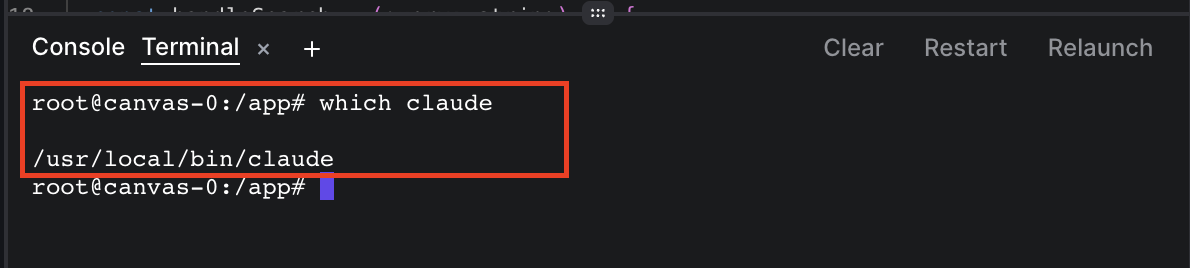
1. Open a new terminal in your Tempo workspace
2. Verify Claude Code is available by running:
```bash theme={null}
which claude
```
This should return the path to Claude Code (e.g., `/usr/local/bin/claude`)

 ### Step 2: Setup Authentication Token
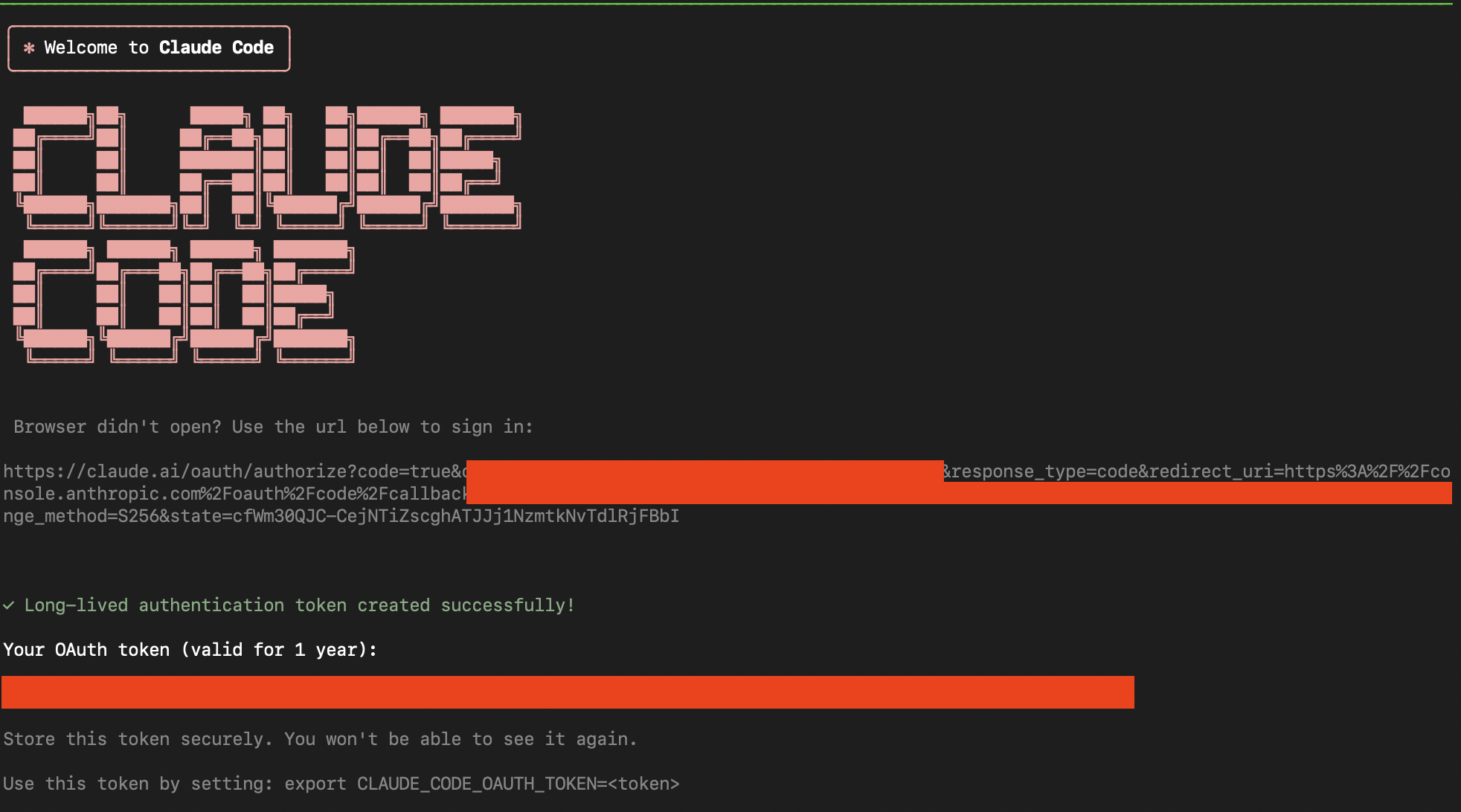
In the same Tempo terminal, run the setup command:
```bash theme={null}
claude setup-token
```
This command will:
* Open a browser window for authentication
* Redirect you to the Anthropic authorization page
### Step 3: Authorize Access
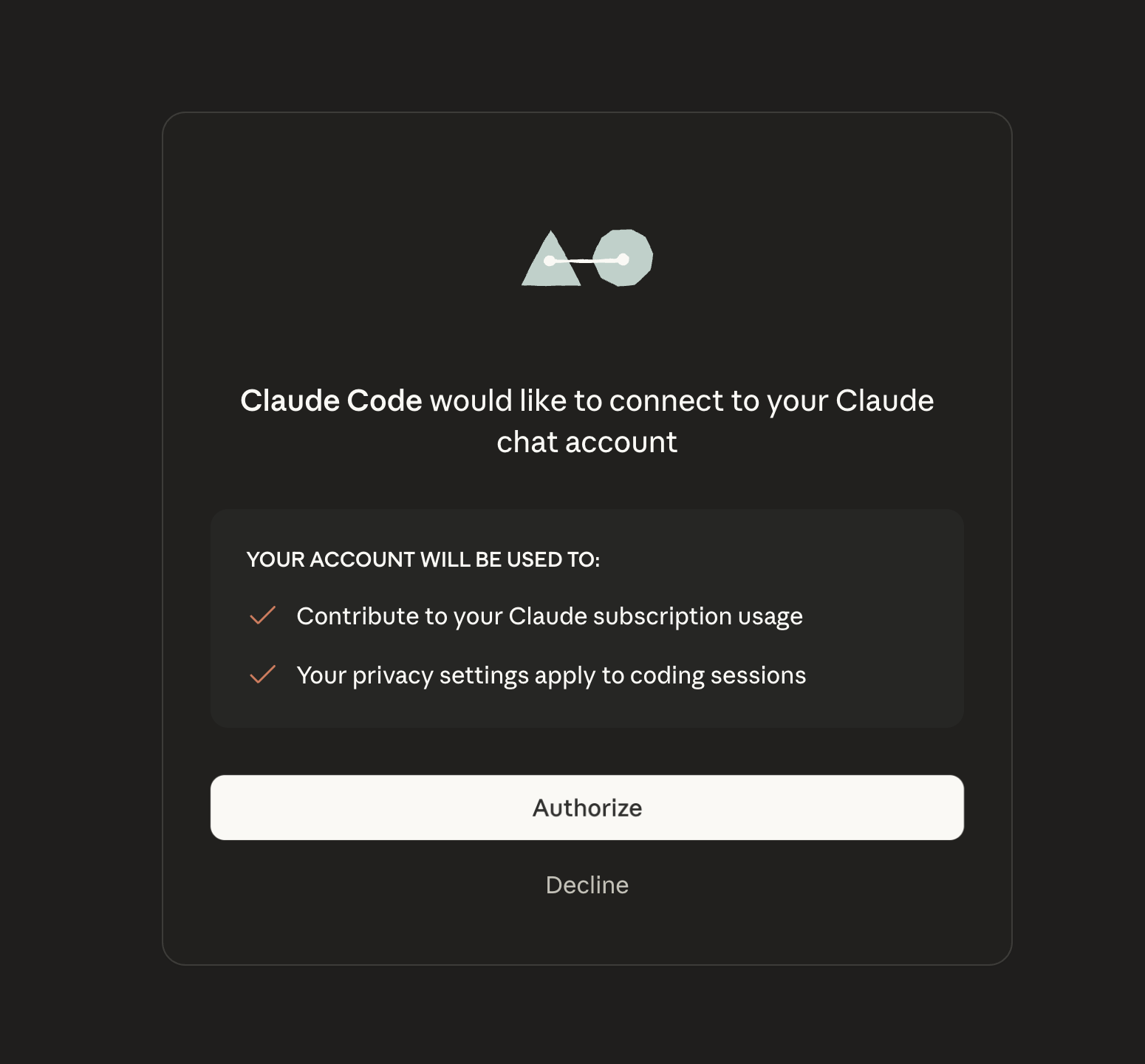
1. Click **Authorize** in the browser window that opens
2. Complete the OAuth flow in your browser
3. Return to your terminal - you'll see the authentication token displayed
### Step 2: Setup Authentication Token
In the same Tempo terminal, run the setup command:
```bash theme={null}
claude setup-token
```
This command will:
* Open a browser window for authentication
* Redirect you to the Anthropic authorization page
### Step 3: Authorize Access
1. Click **Authorize** in the browser window that opens
2. Complete the OAuth flow in your browser
3. Return to your terminal - you'll see the authentication token displayed
 ### Step 4: Configure Tempo Environment
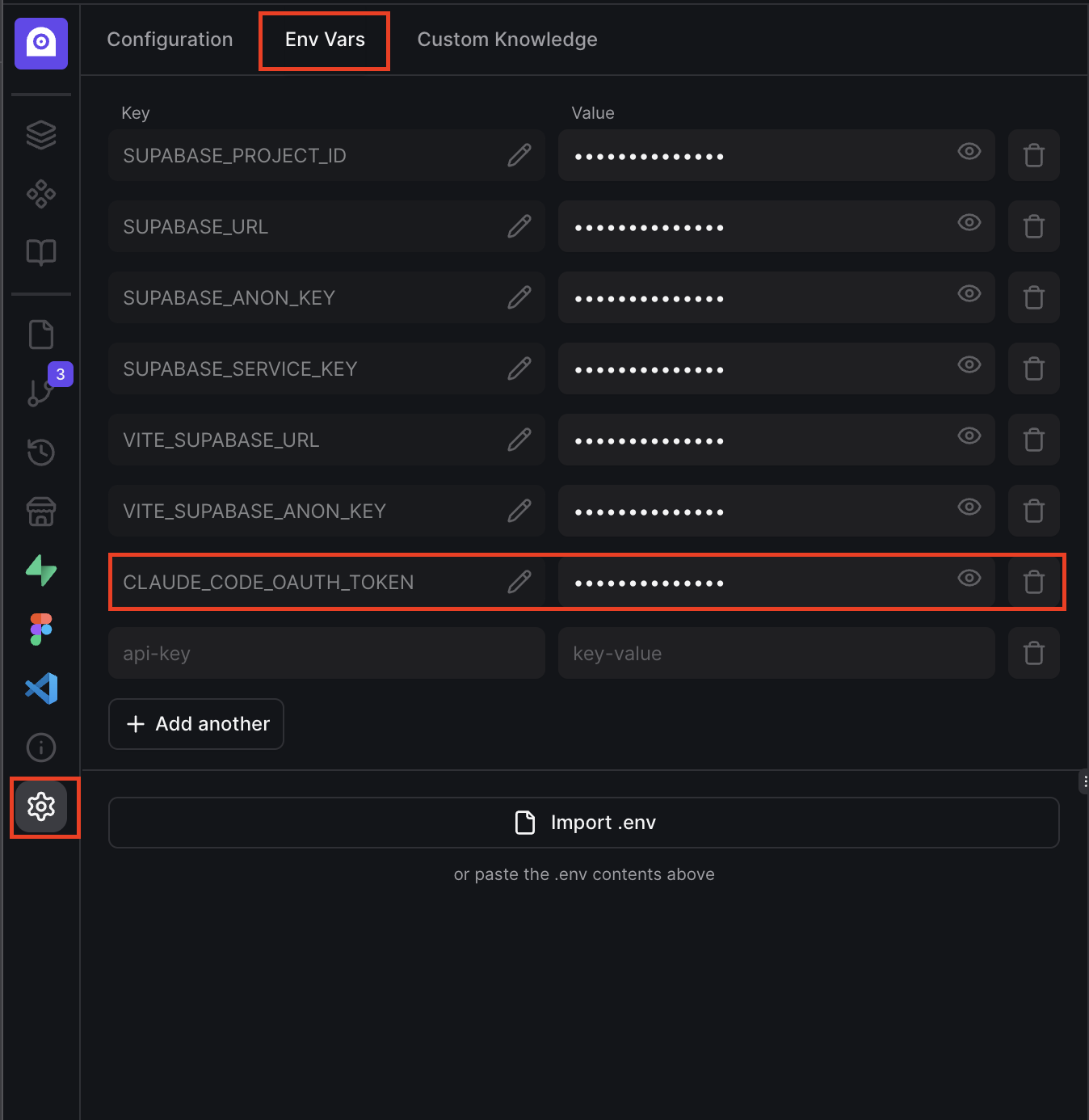
1. Copy the token from your terminal
2. Open your Tempo project
3. Navigate to **Project Settings**
4. Add a new environment variable:
* **Name**: `CLAUDE_CODE_OAUTH_TOKEN`
* **Value**: \[Paste the copied token]
### Step 4: Configure Tempo Environment
1. Copy the token from your terminal
2. Open your Tempo project
3. Navigate to **Project Settings**
4. Add a new environment variable:
* **Name**: `CLAUDE_CODE_OAUTH_TOKEN`
* **Value**: \[Paste the copied token]
 Your Claude Code integration is now active! All the changes made using `Claude Code` model from Tempo will now use your Max subscription.
***
## Anthropic API Method
If you prefer to use your own Anthropic API key, you can connect Claude Code directly through the API.
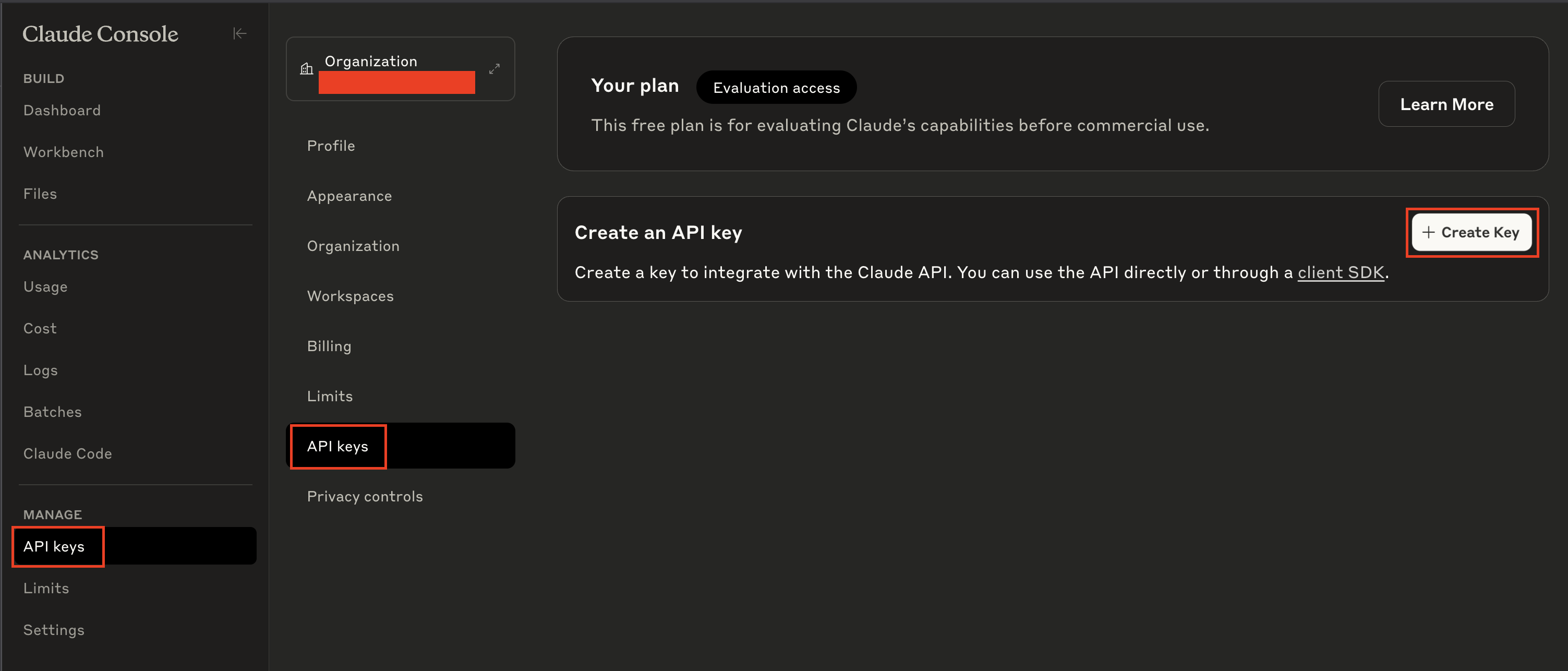
### Step 1: Get Your Anthropic API Key
1. Visit the [Claude Console](https://console.anthropic.com/)
2. Navigate to **API Keys** section from the Sidebar
3. Create a new API key or copy an existing one
4. Ensure your account has available credits (check the Billing section)
Your Claude Code integration is now active! All the changes made using `Claude Code` model from Tempo will now use your Max subscription.
***
## Anthropic API Method
If you prefer to use your own Anthropic API key, you can connect Claude Code directly through the API.
### Step 1: Get Your Anthropic API Key
1. Visit the [Claude Console](https://console.anthropic.com/)
2. Navigate to **API Keys** section from the Sidebar
3. Create a new API key or copy an existing one
4. Ensure your account has available credits (check the Billing section)
 Your Anthropic account must be funded with credits for the API key to work. Check your usage and billing status in the console before proceeding.
For detailed instructions, refer to the [Anthropic SDK documentation](https://docs.anthropic.com/en/docs/claude-code/sdk/sdk-overview#authentication).
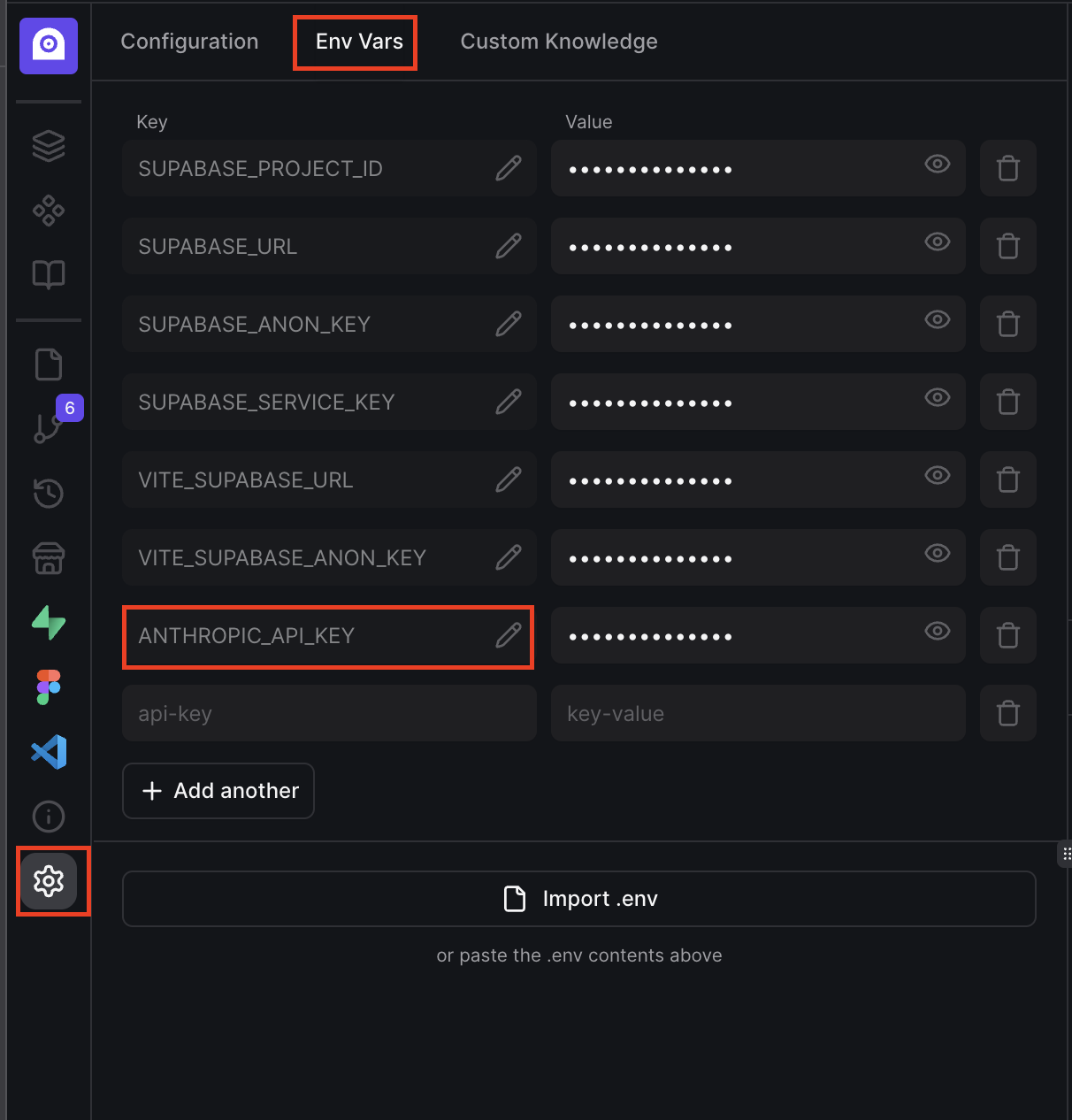
### Step 2: Configure Environment Variable
1. Open your Tempo project
2. Navigate to **Project Settings**
3. Add a new environment variable:
* **Name**: `ANTHROPIC_API_KEY`
* **Value**: \[Your Anthropic API key]
Your Anthropic account must be funded with credits for the API key to work. Check your usage and billing status in the console before proceeding.
For detailed instructions, refer to the [Anthropic SDK documentation](https://docs.anthropic.com/en/docs/claude-code/sdk/sdk-overview#authentication).
### Step 2: Configure Environment Variable
1. Open your Tempo project
2. Navigate to **Project Settings**
3. Add a new environment variable:
* **Name**: `ANTHROPIC_API_KEY`
* **Value**: \[Your Anthropic API key]
 Keep your API key secure and never commit it to version control. Tempo automatically encrypts and secures your environment variables.
***
## Using Claude Code in Tempo
Claude Code is always visible as a model option in your AI chat interface. However, it requires proper authentication to function.
If you haven't configured authentication (either OAuth token or API key), selecting Claude Code will result in an error message. You must complete one of the authentication methods above before Claude Code will work.
### Features
Claude Code can read, edit, and create files across your entire project with precise context awareness.
Unlike regular models, Claude Code maintains awareness of your complete project structure and dependencies.
Access to specialized tools for terminal commands, file operations, and project management.
Changes made by Claude Code are immediately reflected in your Tempo workspace.
### Model Switching
* **Selecting Claude Code**: Automatically switches to the latest Claude Code conversation
* **Switching to Regular Models**: Automatically enables MAX mode and switches to your latest regular conversation
***
## Troubleshooting
If authentication fails:
1. Run `claude setup-token` again in the Tempo terminal
2. Ensure you complete the full OAuth flow in the browser
3. Check that the token was copied correctly to Tempo settings
4. Make sure you're using the Tempo terminal (not your local terminal)
Claude Code is always visible in the model dropdown, but will fail if not authenticated:
1. Verify you've set either `CLAUDE_CODE_OAUTH_TOKEN` or `ANTHROPIC_API_KEY`
2. Check that the environment variable values are correct
3. For Max subscription, ensure your subscription is active
4. For API key, verify it's valid in the Anthropic Console
For Anthropic API method:
1. Verify your API key is valid in the Anthropic Console
2. **Check that your account is funded** - API keys won't work without available credits
3. Ensure the environment variable is named `ANTHROPIC_API_KEY`
4. Review your API usage limits and billing status in the console
***
## Next Steps
1. **Test the Integration**: Select Claude Code from the model dropdown and try a simple file edit
2. **Explore Advanced Features**: Ask Claude Code to analyze your project structure or suggest improvements
3. **Combine with Other Tools**: Use Claude Code alongside Tempo's other AI models for comprehensive development assistance
You're all set! Claude Code is now integrated with your Tempo project and ready to supercharge your development workflow.
Keep your API key secure and never commit it to version control. Tempo automatically encrypts and secures your environment variables.
***
## Using Claude Code in Tempo
Claude Code is always visible as a model option in your AI chat interface. However, it requires proper authentication to function.
If you haven't configured authentication (either OAuth token or API key), selecting Claude Code will result in an error message. You must complete one of the authentication methods above before Claude Code will work.
### Features
Claude Code can read, edit, and create files across your entire project with precise context awareness.
Unlike regular models, Claude Code maintains awareness of your complete project structure and dependencies.
Access to specialized tools for terminal commands, file operations, and project management.
Changes made by Claude Code are immediately reflected in your Tempo workspace.
### Model Switching
* **Selecting Claude Code**: Automatically switches to the latest Claude Code conversation
* **Switching to Regular Models**: Automatically enables MAX mode and switches to your latest regular conversation
***
## Troubleshooting
If authentication fails:
1. Run `claude setup-token` again in the Tempo terminal
2. Ensure you complete the full OAuth flow in the browser
3. Check that the token was copied correctly to Tempo settings
4. Make sure you're using the Tempo terminal (not your local terminal)
Claude Code is always visible in the model dropdown, but will fail if not authenticated:
1. Verify you've set either `CLAUDE_CODE_OAUTH_TOKEN` or `ANTHROPIC_API_KEY`
2. Check that the environment variable values are correct
3. For Max subscription, ensure your subscription is active
4. For API key, verify it's valid in the Anthropic Console
For Anthropic API method:
1. Verify your API key is valid in the Anthropic Console
2. **Check that your account is funded** - API keys won't work without available credits
3. Ensure the environment variable is named `ANTHROPIC_API_KEY`
4. Review your API usage limits and billing status in the console
***
## Next Steps
1. **Test the Integration**: Select Claude Code from the model dropdown and try a simple file edit
2. **Explore Advanced Features**: Ask Claude Code to analyze your project structure or suggest improvements
3. **Combine with Other Tools**: Use Claude Code alongside Tempo's other AI models for comprehensive development assistance
You're all set! Claude Code is now integrated with your Tempo project and ready to supercharge your development workflow.