> ## Documentation Index
> Fetch the complete documentation index at: https://tempolabsinc.mintlify.site/llms.txt
> Use this file to discover all available pages before exploring further.
# Troubleshooting Edge Functions
> A guide to troubleshooting Supabase Edge Functions
Tempo's AI-generated Edge Functions offer significant advantages in terms of development speed and efficiency, but these functions may occasionally contain imperfections or encounter specific runtime issues. The purpose of this guide is to equip developers with the knowledge and tools necessary to identify, diagnose, and resolve the most common issues encountered when deploying and running AI-generated Edge Functions within the Supabase ecosystem. By understanding these potential pitfalls and their corresponding solutions, you can ensure smoother deployment cycles, prompot AI better and ensure reliable function execution.
## Using Developer Tools for Debugging
Before diving into specific issues, it's essential to know how to inspect and debug Edge Function requests using browser developer tools. Most Edge Function errors will be visible in the network requests tab of your browser's developer tools.
### Opening Developer Tools
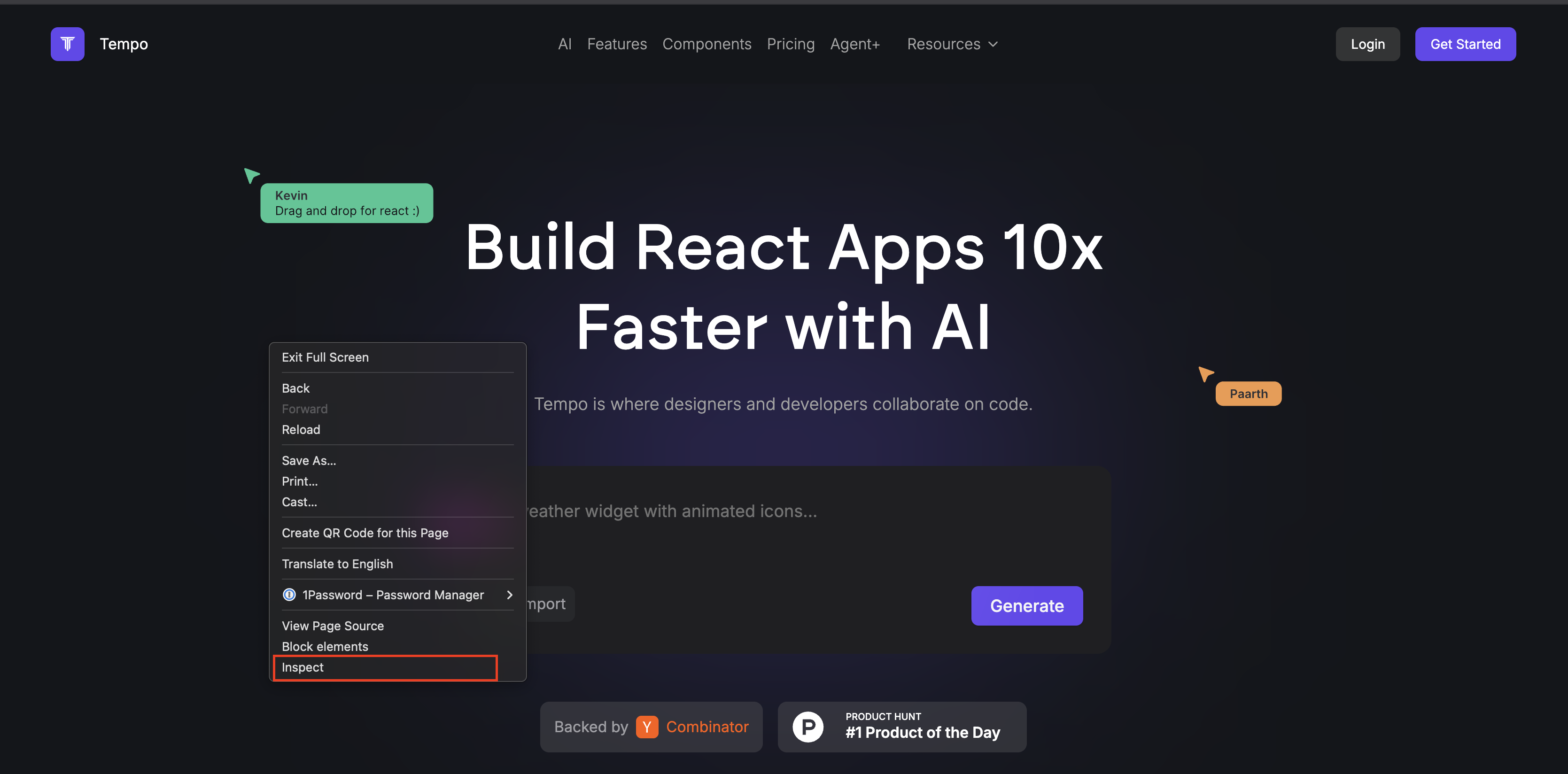
How To Open Dev Tools
**Chrome / Edge / Brave**
* Windows/Linux: Press `F12` or `Ctrl+Shift+I` or right-click and select "Inspect"
* macOS: Press `Cmd+Option+I` or right-click and select "Inspect"
**Firefox**
* Windows/Linux: Press `F12` or `Ctrl+Shift+I`
* macOS: Press `Cmd+Option+I`
**Safari**
* First enable developer tools: Safari > Preferences > Advanced > "Show Develop menu in menu bar"
* Then press `Cmd+Option+I` or select Develop > Show Web Inspector
### Inspecting Edge Function Requests
1. Open developer tools and navigate to the Network tab
2. Perform the action in your application that triggers the Edge Function
3. Look for requests to URLs containing /functions/v1/
4. Click on the request to view:
* **Headers**: Check for correct authorization and content-type
* **Payload/Request**: Review the data being sent
* **Response**: See error messages or response data
* **Status code**: Identify if the request was successful (200) or encountered an error (400, 500, etc.)
### Filtering Requests
To find Edge Function requests more easily:
* Type `functions/v1` in the filter box of the Network tab
* Or click on "Fetch/XHR" to show only API requests

How to filter network logs
## Deployment Error: Failed to Create Graph:
When deploying your Tempo AI-generated Edge Functions to Supabase, you may encounter a "Failed to Create Graph" error. This error typically occurs due to incorrect import path configurations in the deno.json file.
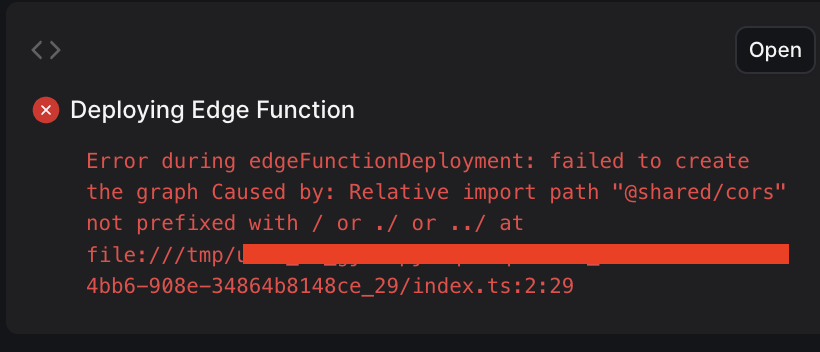
Supabase Failed Import Error
### Root Cause
Supabase Edge Functions require each function to be treated as an independent project with its own dependencies and configurations. In production-grade applications, shared code is typically placed in a \_shared directory and referenced via import maps in the deno.json file.
The error occurs when the import paths in deno.json use incorrect relative paths. Specifically, when the AI mistakenly configures paths with ../ instead of ./.
Typical Supabase Functions Structure
```bash theme={null}
supabase/
├── functions/
├── hello_world/
│ ├── index.ts # Main function code
│ └── deno.json # Import map configuration
├── user_authentication/
│ ├── index.ts # User authentication function
│ └── deno.json # Import map configuration
└── _shared/
├── utils.ts # Shared utility functions
├── cors.ts # Shared CORS functions
└── database.types.ts # Shared database types
```
Incorrect Configuration (Causes Error)
```json theme={null}
{
"imports": {
"@shared/": "../_shared/"
}
}
```
Correct Configuration
```json theme={null}
{
"imports": {
"@shared/": "./_shared/"
}
}
```
### How to Fix
* Locate the deno.json file in each function directory
* Check the import path for the @shared/ alias
* Ensure it uses a single dot (./\_shared/) rather than two dots (../\_shared/)
* Save the file and ask the AI to redeploy the edge function using the appropriate function name.
* For instance, `Redeploy the hello-world` Edge Function
## CORS Error: Invalid Function Name
After deploying your Edge Functions, you may encounter CORS errors when attempting to invoke them from your React application.
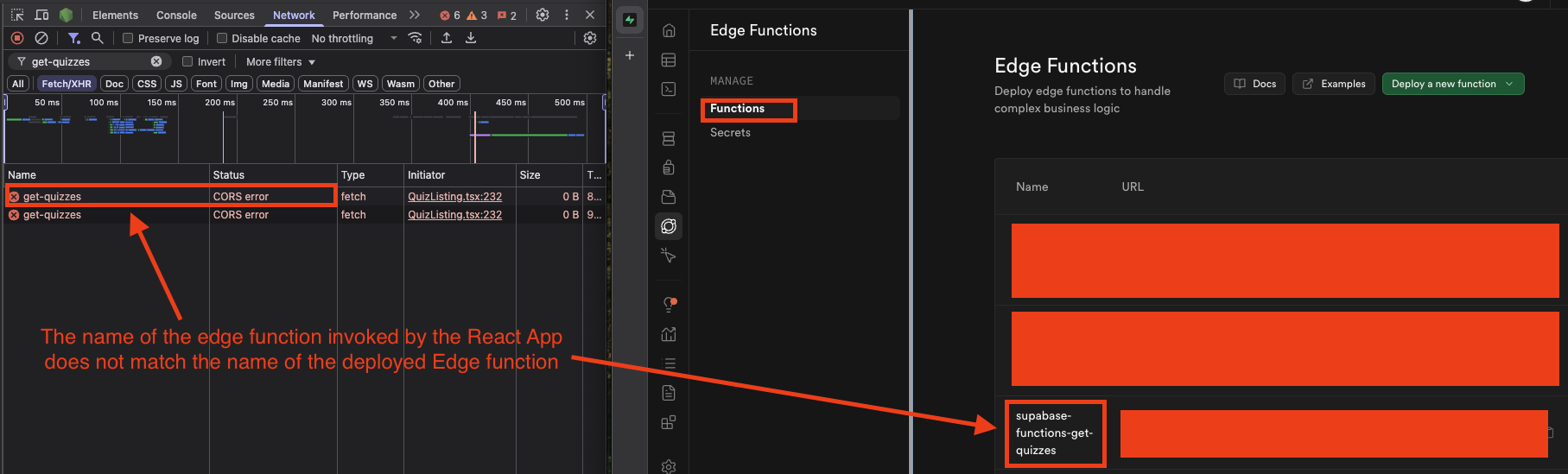
Supabase Incorrect Function Name Error
### Root Cause
When deploying Edge Functions, Tempo AI generates a specific function name based on your directory structure. The full function slug includes the prefix supabase-functions- followed by your directory name.
For example, a function in the directory hello-world would have the full slug of `supabase-functions-hello-world`.
Tempo's AI sometimes uses **only** the directory name (e.g., `hello-world`) when generating code that invokes these functions, rather than the complete function slug, resulting in **CORS** errors.
Typical Directory Structure
```bash theme={null}
supabase/
├── functions/
├── hello-world/
│ ├── index.ts # Main function code
│ └── deno.json # Import map configuration
```
Incorrect Invocation (Causes CORS Error)
```javascript theme={null}
const { data, error } = await supabase.functions.invoke("get-quizzes", {
method: "POST",
body: body,
});
```
Correct Invocation:
```javascript theme={null}
const { data, error } = await supabase.functions.invoke("supabase-functions-hello-world", {
method: "POST",
body: body,
});
```
### How to Fix
* Explicitly instruct Tempo AI to use the correct function slug format when generating code
* For example: `Please ensure all Edge Function invocations use the format 'supabase-functions-hello-world`
* Alternatively, manually identify all places in your codebase where the failing Edge Functions are being invoked and **replace** any instances of the directory name with the full function slug (supabase-functions- + directory name)
## supabaseKey is required Error
After deploying or updating your Edge Functions, you may encounter a "supabaseKey is required" error with status code **400** (Bad Request) when the function is executed.
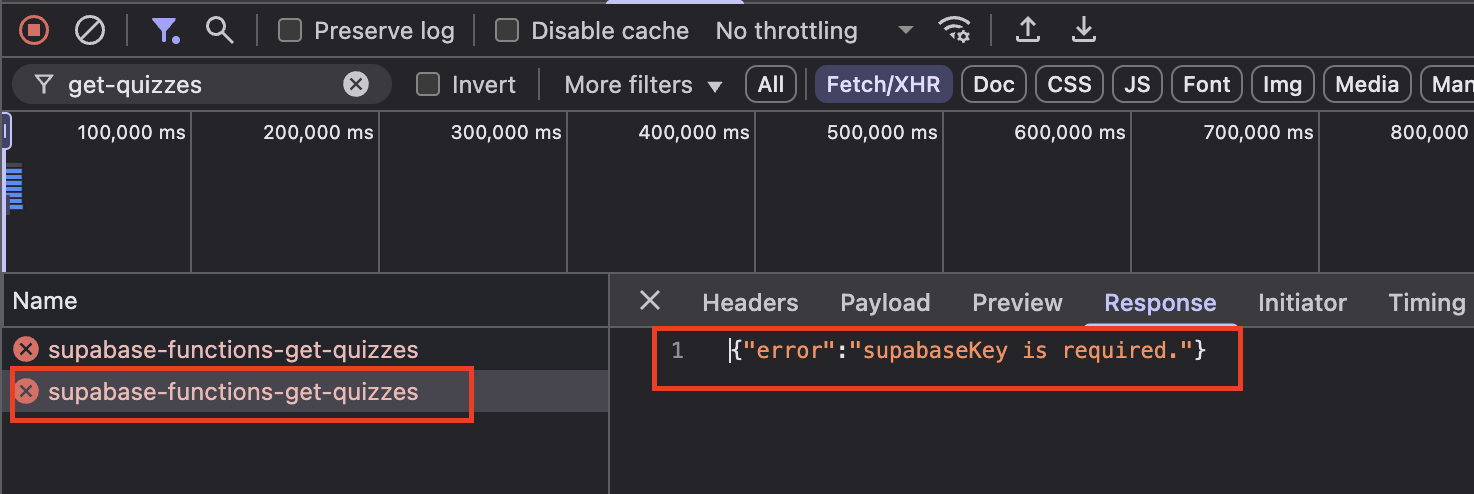
Bad Request: supabaseKey required Error
### Root Cause
When initializing the Supabase client within an Edge Function, two mandatory parameters are required:
1. Supabase URL
2. Supabase Key (service role or anon key)
This error typically occurs when the AI makes modifications to fix other issues and inadvertently changes the environment variable name used for the Supabase key in the client initialization code.
**Example of Incorrect Code**
```typescript theme={null}
// Inside the Edge Function
import { createClient } from '@supabase/supabase-js';
const supabaseUrl = Deno.env.get('SUPABASE_URL') ?? '';
// Incorrect: Using an environment variable that doesn't exist
const supabaseKey = Deno.env.get('SUPABASE_NON_EXISTENT_SERVICE_KEY') ?? ''; // Wrong variable name
const supabase = createClient(supabaseUrl, supabaseKey);
```
Example of Correct Code
```typescript theme={null}
// Inside the Edge Function
import { createClient } from '@supabase/supabase-js';
// Correct: Using the environment variable name that exists in Secrets
const supabaseUrl = Deno.env.get('SUPABASE_URL') ?? '';
const supabaseKey = Deno.env.get('SUPABASE_SERVICE_ROLE_KEY') ?? ''; // Correct variable name
const supabase = createClient(supabaseUrl, supabaseKey);
```
### How to Fix
* In the Supabase Console, navigate to the Edge Functions tab and check under the "Secrets" section to confirm which environment variables are defined
* Ensure that the key name used in your Edge Function code matches exactly the one defined in the Secrets